01
What you need
01
The spreadsheet
.xlsx, .csv or .tsv.
02
Who uses it and what they need to do with it.
How to do it
- Start a Build chat
Switch the chat to Build, or open Projects and click New project. Attach the spreadsheet with the paperclip.
- Describe the tool
Say who uses it and what they do: “a booking form for clients and a calendar view for us that flags double bookings”. Describe outcomes, not implementation.
- Check the preview
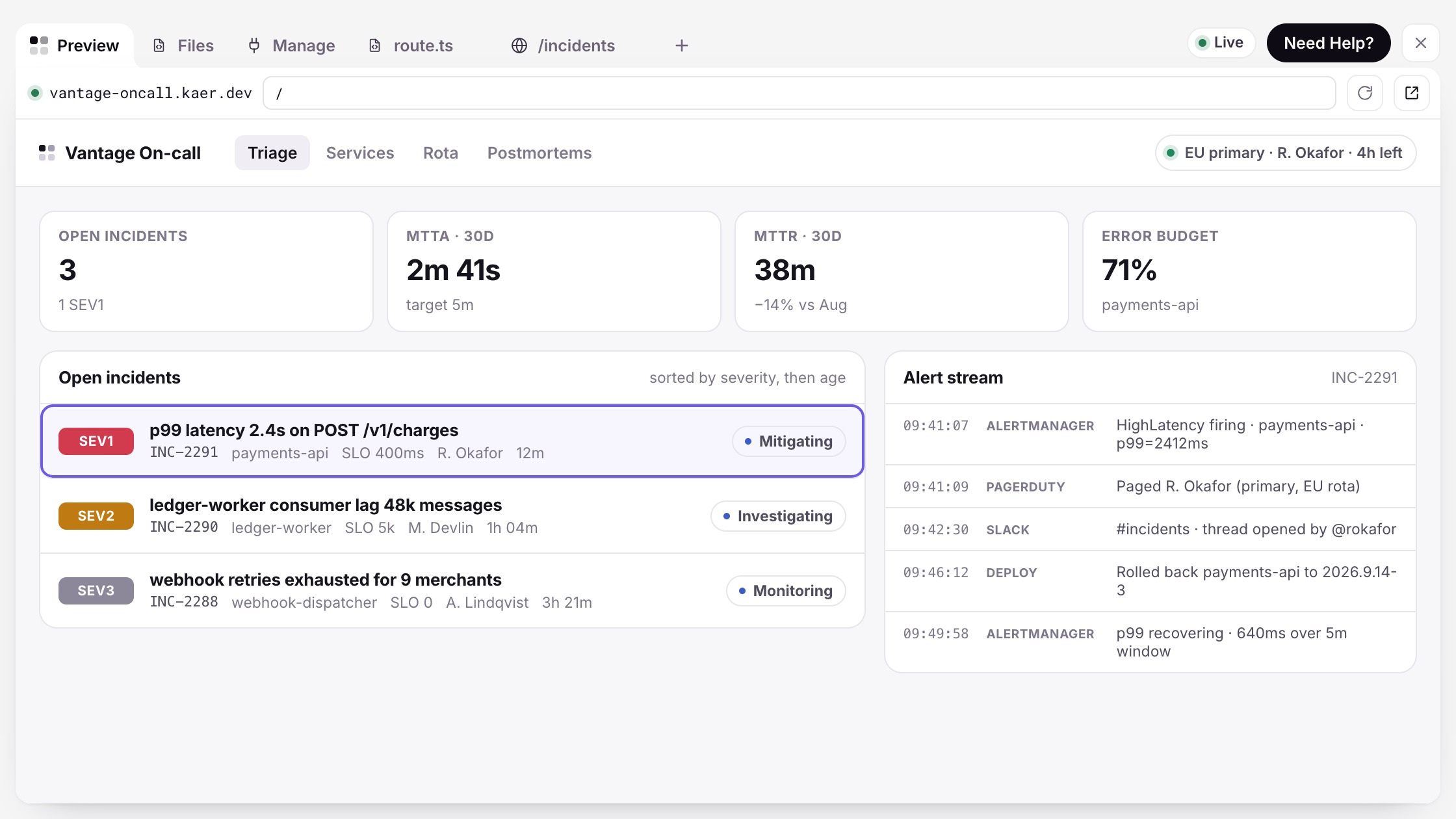
Kaer builds it and shows a live Preview. The workspace tabs, Preview, Files, Tasks and Manage, let you look around; ask for changes in the chat.
- Publish it on an address
In Manage → Publish, choose an Address on kaer.dev, decide whether it shows in search results, and click Publish. A published app is billed by the hour while it runs and sleeps after ten minutes unused.
- Use your own domain (optional)
If your domain is on Cloudflare, connect it from the custom domain option and publish the tool on your own address.
The parts that stay yours
02
You can Unpublish at any time.
03
Changes are previewed before they replace what's live.
Questions
Do I need a developer?
No. You describe the tool and review the preview; Kaer writes and hosts it.
Can Kaer work on our existing code instead?
Yes, if you have engineers: an AI employee with GitHub access can open pull requests on your repository for them to review.
More guides
01
How to get work done on a website with no API
02Supplier portals, booking systems, back-office tools: how Kaer works a website in its own browser, where you sign in, and where it stops for your approval.
How to chase overdue invoices without sending anything you haven't approved
03Find what's overdue, draft each reminder in your tone, and approve it before it goes. A step-by-step guide to chasing invoices with Kaer.
How to answer enquiries from your inbox with Kaer Mail
04Set up Kaer Mail, let it sort the morning's enquiries, approve drafted replies before they send, then choose how much runs automatically.
How to put a weekly report on a schedule
05Describe the report once, run it by hand, add an approval step and put it on a schedule. A step-by-step guide to recurring work with Kaer Workflows.
Software Builder
06Usage pricing
07Quickstart